Broadcast from your computer or DJ software
For power users: run 24/7 from your own computer with the Nobex Streaming Agent, or connect OBS, BUTT, Mixxx, Virtual DJ or any Icecast-compatible encoder. Optional — most stations never need it.
Cloud AutoDJ, browser go-live and the phone app cover almost everything a station needs — so most broadcasters never open this page. But if you run a hardware mixer, mix in DJ software, or want the station playing from music that lives on your own machine, Nobex has two power-user paths waiting for you.
This is optional
You do not need any of this to run a great station. If Cloud AutoDJ and browser/phone go-live already do what you want, you can skip this guide entirely. It exists for the cases where you want to bring your own gear or software.
Where these options live
Both paths start from your station's connection page. Open the floating Broadcast panel and click "Prefer broadcasting software? Connection options" at the bottom, or go to the connection page directly. Across the top you will find tabs for From Your Browser, From Your Phone, From Your Computer and DJ Software & Encoders — the last two are what this guide covers.
Tip
Every path feeds the same station and the same listen links — your CDN stream link and public page stay identical. Your listeners never know or care how the audio got there.
Path 1 — The Nobex Streaming Agent
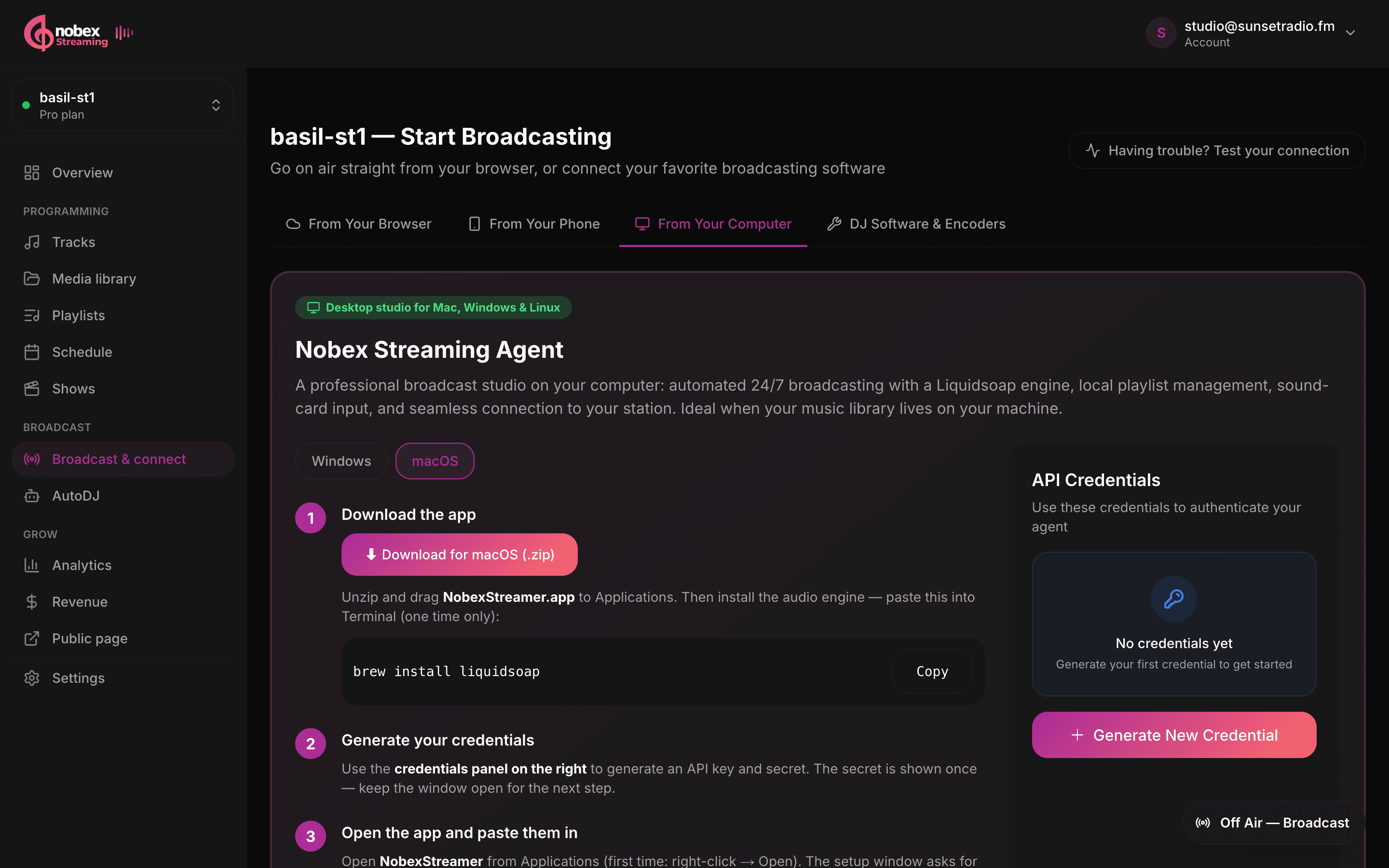
The Nobex Streaming Agent is a desktop app for Mac and Windows, powered by the same Liquidsoap engine that runs in the cloud. It downloads music from your Nobex library for local playback and can broadcast a microphone, mixer or DJ software. Keep the computer awake and connected while it is broadcasting.
Install on a Mac
- 1On Connection → From Your Computer, choose macOS and download the app. Open the ZIP and drag NobexStreamer.app to Applications.
- 2Install Homebrew if you do not already have it. Then open Terminal and run the command below once to install the audio engine and microphone support.
- 3Open NobexStreamer from Applications, then connect your station using the steps below.
brew install liquidsoap ffmpegInstall on Windows
- 1On Connection → From Your Computer, choose Windows and download the app. Use Extract All and open the extracted folder.
- 2Download Liquidsoap using the link on that page. Extract its whole folder next to NobexStreamer.exe. Keep its supporting files together. For a microphone or mixer, also extract the FFmpeg folder there.
- 3Double-click NobexStreamer.exe from the extracted folder. You do not need to install Go, a compiler, or change PATH.
NobexStreamer/
  NobexStreamer.exe
  liquidsoap-2.2.5-win64/
    liquidsoap.exe
    ...supporting files
  ffmpeg-.../
    bin/
      ffmpeg.exe
FFmpeg is optional if you only play your library or use a separate DJ encoder.
Connect your station — same on both
- 1In the dashboard’s API Credentials panel, click Generate New Credential. Keep that window open: the secret is shown once.
- 2In the app’s setup window, paste your Station ID, API Key and API Secret. Leave API Endpoint unchanged. Click Save & Continue. If an older download opens Settings instead, edit the Default profile and click Save Profile, then Save Settings.
- 3Click Start Engine. The agent connects and downloads your station’s Nobex library. For music playback, upload tracks to that library first.
- 4Open your station’s public player and listen. Online confirms the dashboard connection; hearing your audio confirms the broadcast. For a microphone or mixer, choose the input in Settings → Audio, start a live session, and allow microphone access if asked.
Copy the secret immediately
The API secret is displayed a single time when you generate it. Copy it straight into the agent (or a password manager) before you close the dialog. If you lose it, just generate a fresh credential — no harm done.
Note
If the app cannot start or you cannot hear audio, see the setup troubleshooting guide. Keep the app open and your computer awake while broadcasting; opening it at login does not automatically start the engine.
Path 2 — Bring your own encoder
Already have a broadcasting setup? Nobex speaks the standard Icecast protocol, so you can connect OBS, BUTT, Mixxx, Virtual DJ, RadioDJ, a hardware encoder, or anything Icecast-compatible. Open the DJ Software & Encoders tab for a guided setup.
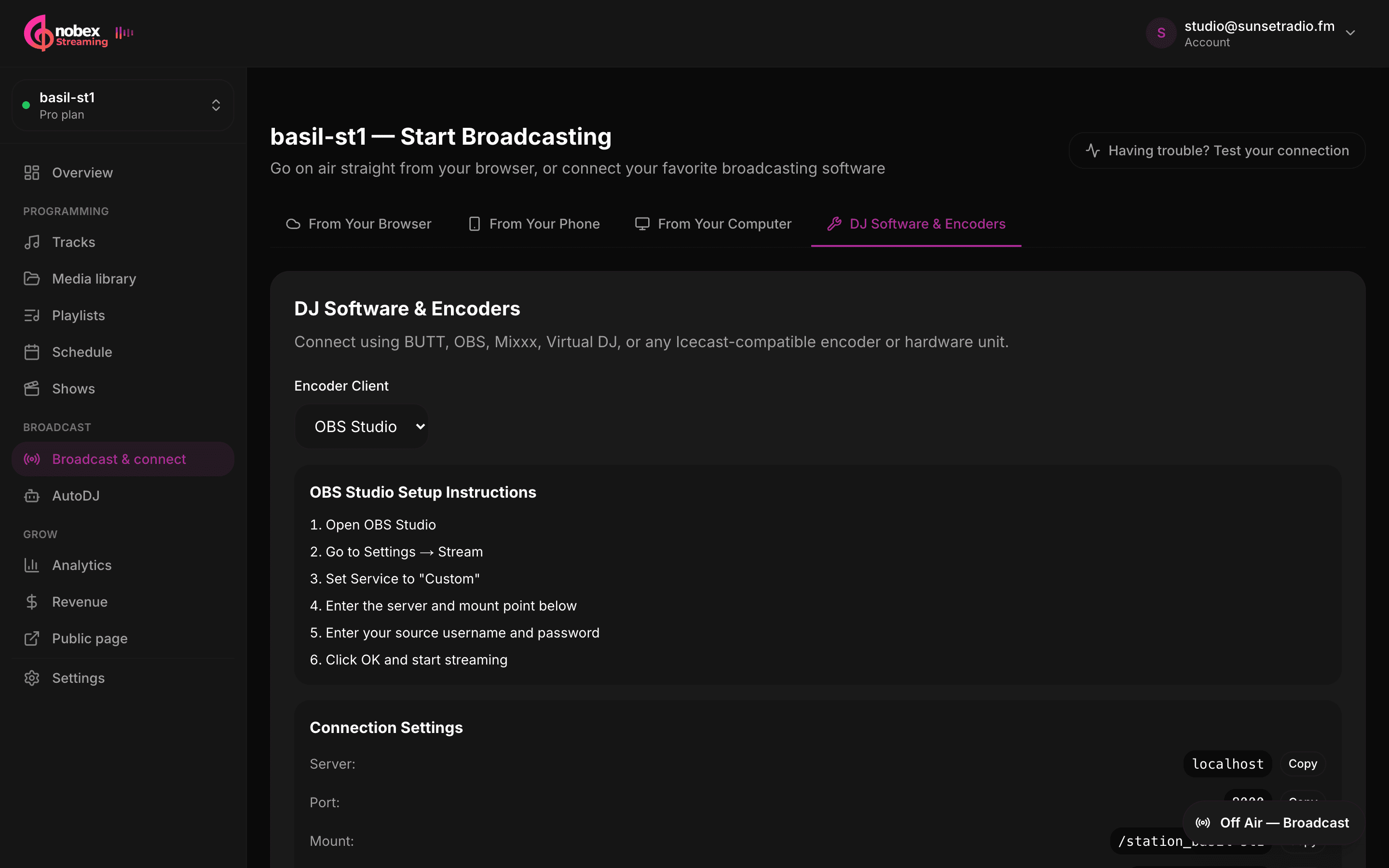
Choose your software from the Encoder Client picker to see step-by-step instructions, then copy your Connection Settings — the host, mount, username and password — straight into your encoder. Every value has a Copy button so there is nothing to mistype.
The one rule that trips people up: match your mount
Your encoder's codec and bitrate must match a configured mount. If you connect with a codec or bitrate that does not line up with your mount settings, Nobex automatically disconnects the source within a few seconds. Check your mount settings, set your encoder to match exactly, and you are golden.
Test your connection
If a connection will not hold, use the built-in diagnostics. Click "Having trouble? Test your connection" at the top of the page and press Run Test. It probes whether your streaming node is reachable, shows your current listeners against your plan limit, and surfaces recommendations when something looks off.
Tip
Run the connection test before you go on air with a new encoder. Catching a mount mismatch or a reachability issue on the ground is far better than discovering it live.
Which path should you use?
| If you want to… | Use |
|---|---|
| Get on air fast with zero software | Cloud AutoDJ (browser) — you probably do not need this page |
| Talk live from a laptop or phone | Browser go-live or the Nobex Broadcaster app |
| Run 24/7 from your own computer or a hardware mixer | Nobex Streaming Agent (Path 1) |
| Mix live in OBS, Mixxx, Virtual DJ or similar | Bring your own encoder (Path 2) |
Keep reading
Ready to put this into practice?
Start free and be on air in under five minutes — no software to install.Pick a plan and be on air in under five minutes — no software to install.
Start streaming freeStart streaming