How to connect OBS, BUTT, Virtual DJ, Mixxx and other software to your station
The five values every encoder needs, the exact click-path for OBS Studio, BUTT, Virtual DJ, Mixxx, RadioDJ and SAM, and the answers to "it connects then drops", "authentication failed" and "OBS has no Icecast option".
Your Nobex station is an Icecast server, which means almost every piece of broadcasting software ever written can feed it. But each tool hides the settings in a different place, calls them by different names, and one of the most popular — OBS Studio — cannot do it the obvious way at all. This guide gives you the exact settings for each tool and answers the questions we get most.
You may not need any of this
To talk live, press Go Live in your dashboard — it uses your browser microphone, nothing to install. To play music 24/7, upload it and press Start on Cloud AutoDJ. Reach for an encoder only when you already mix in DJ software or a hardware mixer and want that on air.
The five values every encoder asks for
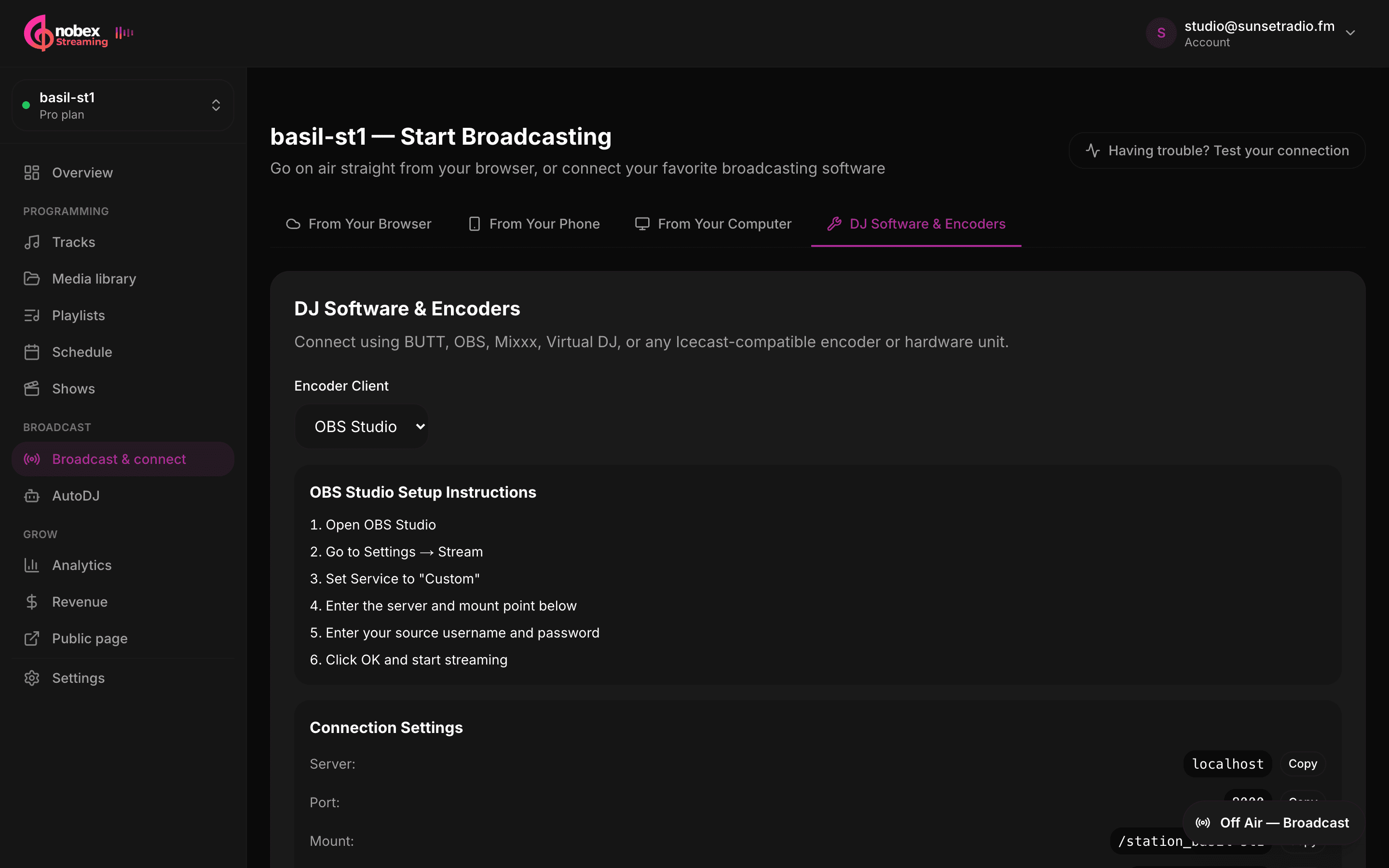
Open your station, go to Broadcast & connect in the sidebar, then the DJ Software & Encoders tab. Everything below is shown there with a Copy button. Whatever software you use, it needs exactly these:
| Setting | Value | Notes |
|---|---|---|
| Server type | Icecast 2 | Never SHOUTcast — the protocol is different and will not connect. |
| Server / host | node-1.nobexradio.com | Shown on the page; your station may be on a different node. Just the host name — no http://, no port. |
| Port | 8000 | Not 80, not 443. This is a plain-HTTP source port. |
| Mount | /station_your-station-id_live | The live mount: your station ID (the last part of your dashboard URL) followed by _live. Connect any time — AutoDJ keeps running and comes back when you disconnect. Keep the leading slash where the tool expects a path. |
| Username | source | Plain source works, and so does the source_your-station-id shown on the page — they are the same login. |
| Password | the source password | Shown masked on the page — click to reveal or copy. Rotating it disconnects any encoder that is on air. |
The two rules that cause 90% of tickets
Format: send MP3 at 128 kbps (or whatever your station's quality is set to — check Settings → Mounts). AAC at the same bitrate also works. Ogg, Opus, FLAC and a wrong bitrate get the encoder disconnected a few seconds after it connects.
Use the live mount — and leave AutoDJ running
Your station has two mounts. Point your software at the live mount, /station_YOUR-STATION-ID_live (it is the one shown under Broadcast & connect): you are on air the moment it connects, and your music comes straight back when it disconnects. The plain station mount is held by AutoDJ, so an encoder aimed there answers "mountpoint in use".
OBS Studio — there is no Icecast option, and that is fine
OBS is a video streaming tool. Its Settings → Stream page only knows RTMP, SRT and WHIP — there is no Icecast service in the list, and choosing Custom… there is also RTMP. Nothing you type into that page (server URL, "stream key") can reach a radio server, so if you have been staring at Failed to connect to server, this is why. There is no stream key for a Nobex station. OBS reaches an Icecast server through its FFmpeg output instead:
- 1Open Settings → Output. Set Output Mode to Advanced and open the Recording tab (yes, Recording — not Streaming).
- 2Set Type to Custom Output (FFmpeg) and FFmpeg Output Type to Output to URL.
- 3In File path or URL, enter your five values as one line:
icecast://source:PASSWORD@HOST:8000/station_YOUR-STATION-ID_live— for exampleicecast://source:s3cret@node-2.stream.nobexpartners.com:8000/station_myradio_live. - 4Set Container Format to mp3, Video Encoder to Disable Encoder, Audio Encoder to libmp3lame, and Audio Bitrate to 128 (or your station's bitrate).
- 5Click OK. Check your mic or desktop audio is showing green in the Audio Mixer dock.
- 6Press Start Recording. Nothing is saved to disk — "recording" is just OBS's name for this output; the audio goes straight to your station. Stop Recording takes you off air.
Streaming video to Twitch or YouTube at the same time?
That is exactly what this setup is for. Start Streaming keeps sending video to Twitch/YouTube from the Stream tab; Start Recording sends the audio-only feed to your station. Both run at once.
Note
Copy the password rather than typing it — a capital I and a lowercase l look alike in OBS's font. If the server says authentication failed, re-copy the username and password from Broadcast & connect.
BUTT — the simplest choice for audio only
BUTT (Broadcast Using This Tool) is free, runs on Windows, macOS and Linux, and is built for precisely this job: take a sound card or mic and push it to an Icecast server. If you only need audio, use BUTT rather than OBS.
- 1Open BUTT and click Settings. On the Main tab, under Server, click Add.
- 2Give it a name, choose Type: Icecast, and fill in Address (the host), Port
8000, Password, Mount/station_your-station-id_live, and Usersource_your-station-id. - 3Click Save. Open the Audio tab: set Codec to MP3, Bitrate to 128 kbps, Samplerate 44100, Channels stereo. Pick your input device at the top.
- 4Close Settings and press the Play (▶) button. The status line reads connected within a couple of seconds.
Tip
BUTT can send track titles. On the Stream tab, tick Update song name from application and pick your player, or fill in a fixed title — your public page and apps show it as now playing.
Virtual DJ
- 1Open the Master panel (or the Broadcast tab in the sidebar) and choose Broadcast.
- 2Pick Radio Server, then Icecast2 as the server type.
- 3Fill in Server (the host), Port
8000, Mount/station_your-station-id_live, Loginsourceand Password. - 4Set the Format to MP3 and the Bitrate to 128 kbps.
- 5Press Start. Virtual DJ shows the connection status on the same panel.
Note
Broadcasting requires a licensed Virtual DJ edition (Home Plus or Pro). The free edition plays but does not stream.
Mixxx
- 1Open Preferences → Live Broadcasting (in the Options menu on Windows/Linux, the Mixxx menu on macOS).
- 2Under Server connection choose Type: Icecast 2, and enter Host, Port
8000, Mount/station_your-station-id_live, Loginsourceand Password. - 3Under Encoding choose Format: MP3 and Bitrate: 128 kbps.
- 4Click Apply, then turn broadcasting on with Options → Enable Live Broadcasting (Ctrl/Cmd + L). The on-air icon in the toolbar turns green when connected.
RadioDJ
- 1Open Options → Streaming.
- 2Click Add, choose Icecast as the server type, and enter Server, Port
8000, Mount/station_your-station-id_live, Usernamesourceand Password. - 3Set the encoder to MP3, 128 kbps, save, and tick the server as active.
- 4Start streaming from the same panel. RadioDJ reconnects on its own if the link drops.
SAM Broadcaster
- 1Open the Encoders window and click + to add an encoder. Choose MP3 and set the bitrate to 128 kbps.
- 2On the Server Details tab choose Icecast 2, then enter Server IP (the host), Port
8000, Mount/station_your-station-id_live, Usernamesourceand Password. - 3Click OK, select the encoder in the list and press Start (▶).
Hardware encoders and everything else
Barix, Tieline, Comrex, StreamS, a Raspberry Pi running Liquidsoap or ffmpeg — if it can connect to an Icecast 2 server, it can connect to Nobex. Use the same five values, MP3 128 kbps, and remember the username is source_your-station-id. For a command-line encoder the whole thing is one URL: icecast://USERNAME:PASSWORD@HOST:8000/station_YOUR-STATION-ID.
Want your own computer to run the station 24/7 instead?
Encoders are for live shows. If your music library lives on your own machine and you want it to be the station around the clock — with automatic fallback, scheduling and the dashboard controls still working — use the Nobex Streaming Agent rather than an encoder.
Questions people ask
What is the OBS stream key for my station? Is it the password?
There is no stream key. Stream keys belong to RTMP services like Twitch; a radio station is an Icecast server and OBS cannot reach it from Settings → Stream. Use Settings → Output → Recording → Custom Output (FFmpeg) with an icecast:// URL that contains your username and password, then press Start Recording. The full steps are in the OBS section above.
OBS does not list Icecast as a service. What do I pick?
Nothing on that page — it is RTMP-only. Leave Settings → Stream alone and use the Recording tab with Custom Output (FFmpeg) as described above. If you only need audio, BUTT is a simpler tool for this.
It connects and then drops after a few seconds.
You are probably on the plain station mount, where the format has to match your station's quality setting. Switch to the live mount (/station_YOUR-STATION-ID_live): it accepts any format and bitrate, because we re-encode it for your listeners.
It says "authentication failed" or "401 / 403".
Almost always the password: it is the source password from Broadcast & connect, not your login password — copy it, a misread character is the usual cause. The username is source (the source_your-station-id shown on the page works too). Also check the mount is spelled /station_your-station-id_live with the leading slash and no trailing characters, and that the server type is Icecast 2, not Shoutcast.
It says "mountpoint in use" or "mount already has a source".
You typed the plain station mount, which AutoDJ holds. Use the live mount instead — /station_YOUR-STATION-ID_live, as shown under Broadcast & connect. No need to stop anything.
The connection times out or is refused.
Check the port is 8000 and the server field holds only the host name — no http://, https://, or path. If the tool asks for a full URL, it is http://node-1.nobexradio.com:8000 (your node may differ). Do not use your public listen link or CDN address as the server; those are for listeners, not sources. Corporate firewalls sometimes block outbound port 8000 — try from a phone hotspot to confirm.
Do I have to stop AutoDJ before I connect?
No. On the live mount your software is a live source exactly like Go Live in the dashboard: AutoDJ keeps running underneath, pauses while you are connected, and takes the air back the moment you disconnect. With Dead-air protection on, it even falls back by itself if your feed goes silent.
Can I stream to Twitch or YouTube and my radio station at the same time from OBS?
Yes. Start Streaming sends video to the service set on the Stream tab; Start Recording sends the audio-only feed to your station through the FFmpeg output. Run both.
Which software should I use if I have nothing yet?
For talking or a simple show, nothing — press Go Live in your dashboard. For audio from a mixer or sound card, BUTT (free). For mixing music live, Mixxx (free) or Virtual DJ. For running a full station from your own computer, the Nobex Streaming Agent. OBS only if you already produce a video show in it.
How do I show track titles from my software?
Most tools send titles automatically over the Icecast connection (Virtual DJ, Mixxx, RadioDJ, SAM do; BUTT does when you enable it on its Stream tab; OBS does not). If your station has a custom now-playing template, it is applied on top of whatever the encoder sends.
Can I use a SHOUTcast setting instead?
No. Choose Icecast 2 in every tool. The SHOUTcast protocol uses different handshakes and ports and will not connect.
Keep reading
Ready to put this into practice?
Start free and be on air in under five minutes — no software to install.Pick a plan and be on air in under five minutes — no software to install.
Start streaming freeStart streaming