
Create your app in Play Console and upload the first file
Create the app with the package name we give you, and upload the first file. After that, we upload every version for you.
Google needs you to create the app and upload its first file yourself. We make the file; it appears on your checklist about 30 minutes after you invite us. Every later version goes up without you.
1. Create the app
- 1On the Play Console home page, press Create app.
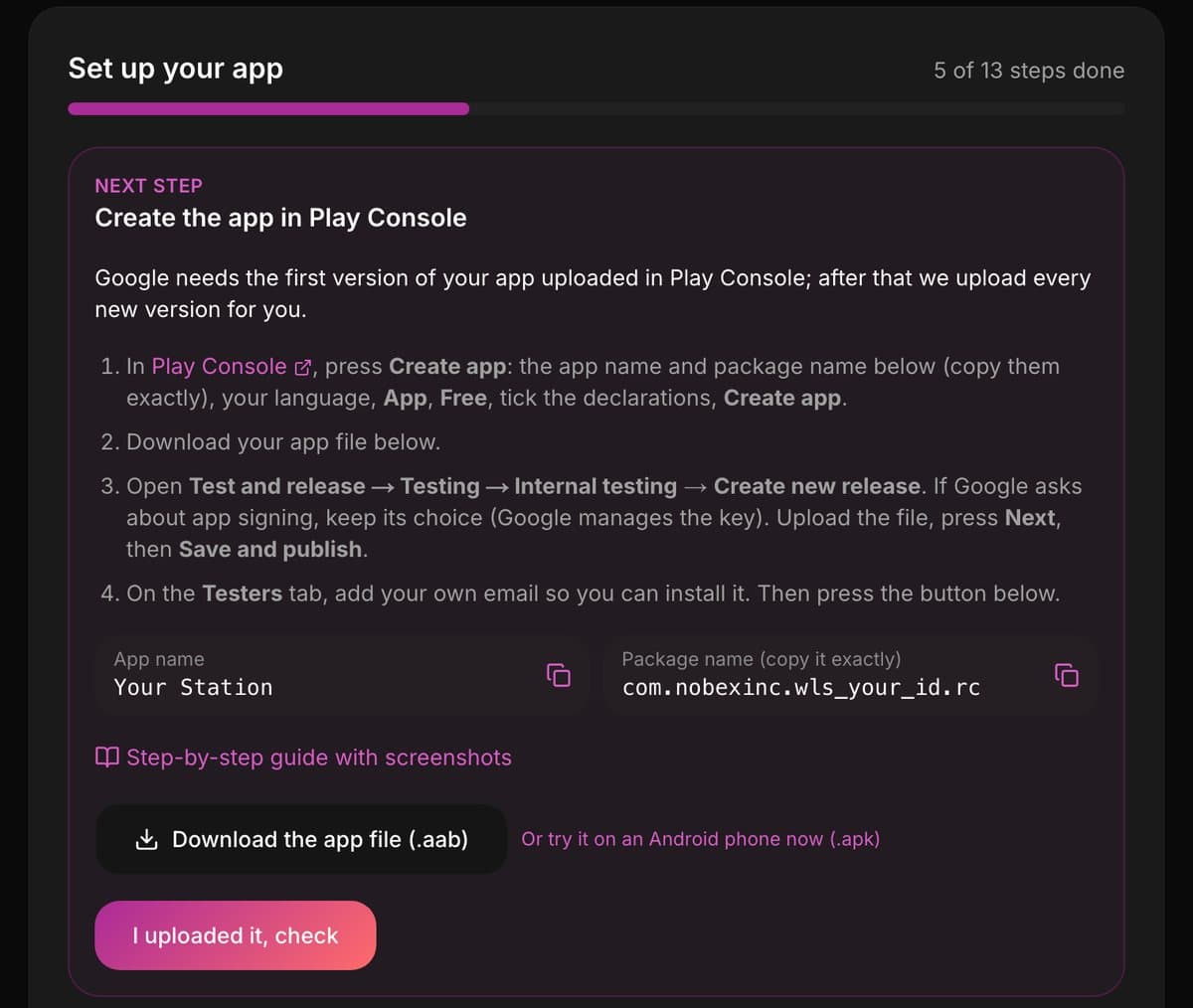
- 2Copy in the App name and Package name from your checklist.
Copy the package name exactly
It must match the file we made for you, and it can’t be changed later. Use the copy button on your checklist. It looks like com.nobexinc.wls_….rc.
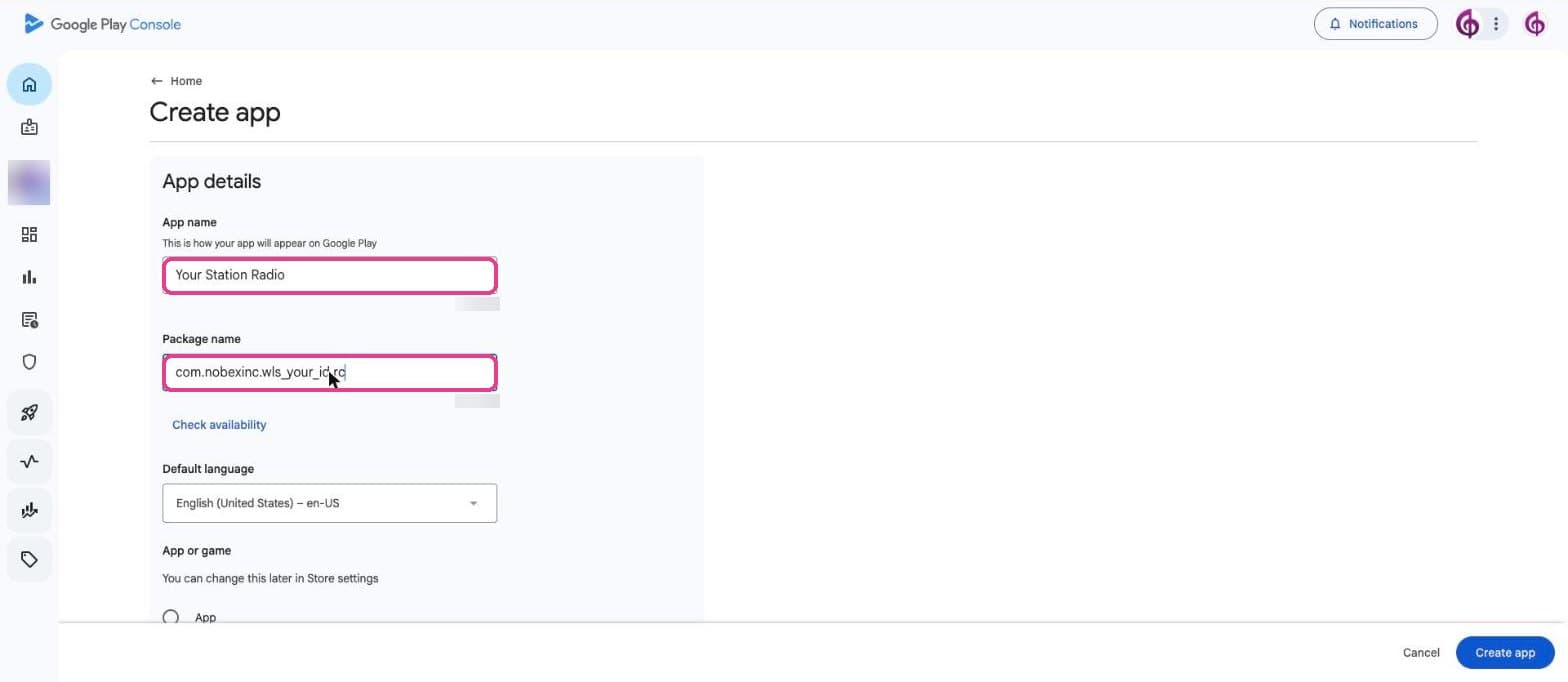
- 1Choose your language, then App and Free.
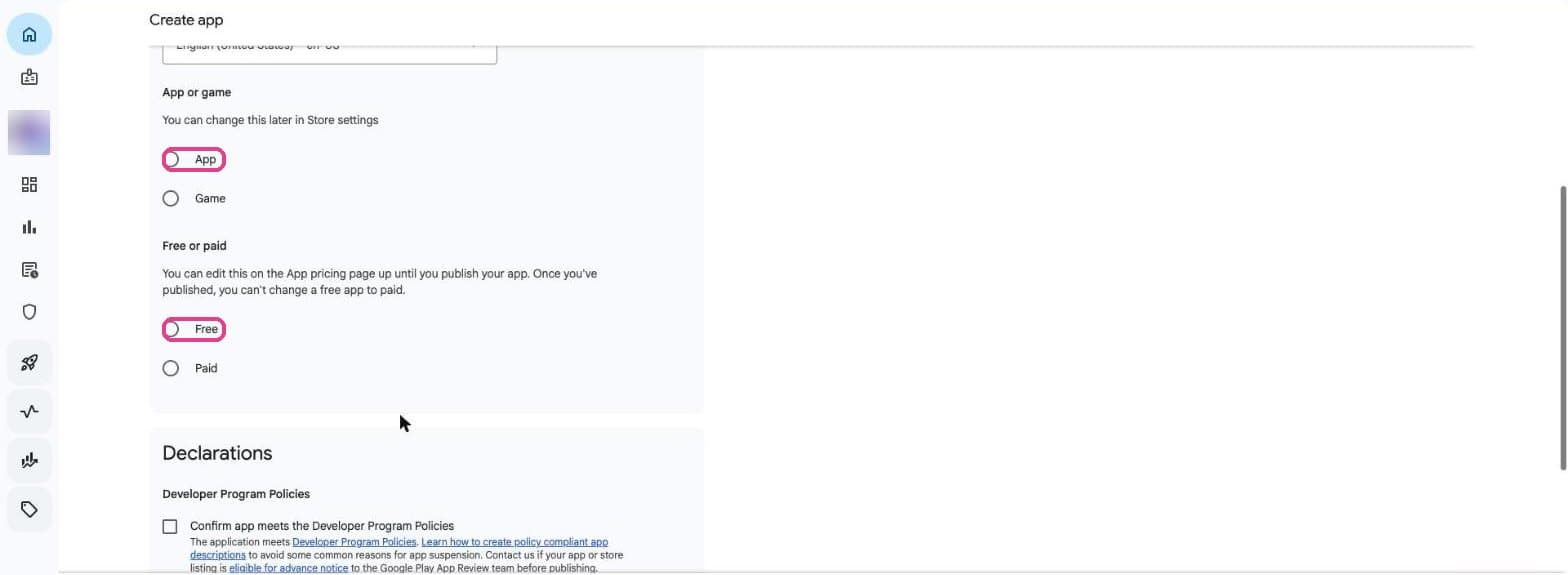
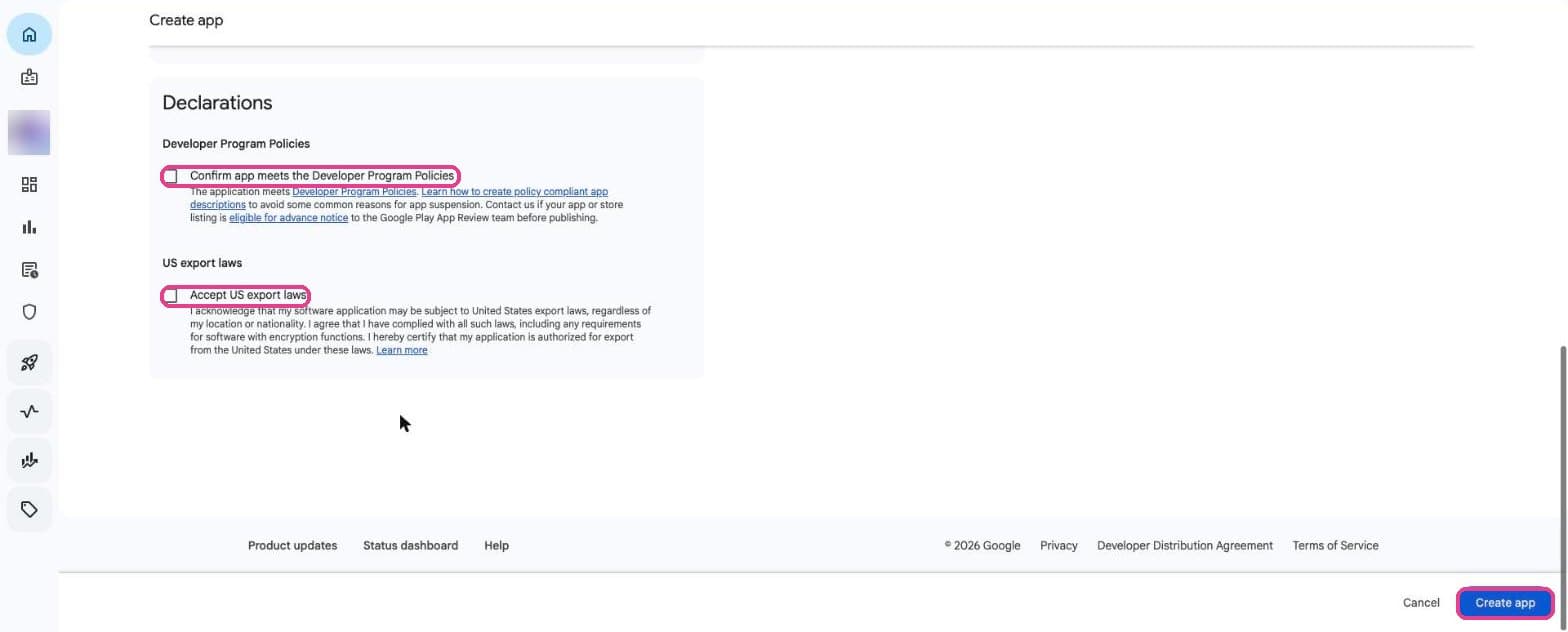
- 1Tick both declarations and press Create app.
2. Upload the first file
- 1Download your app file (
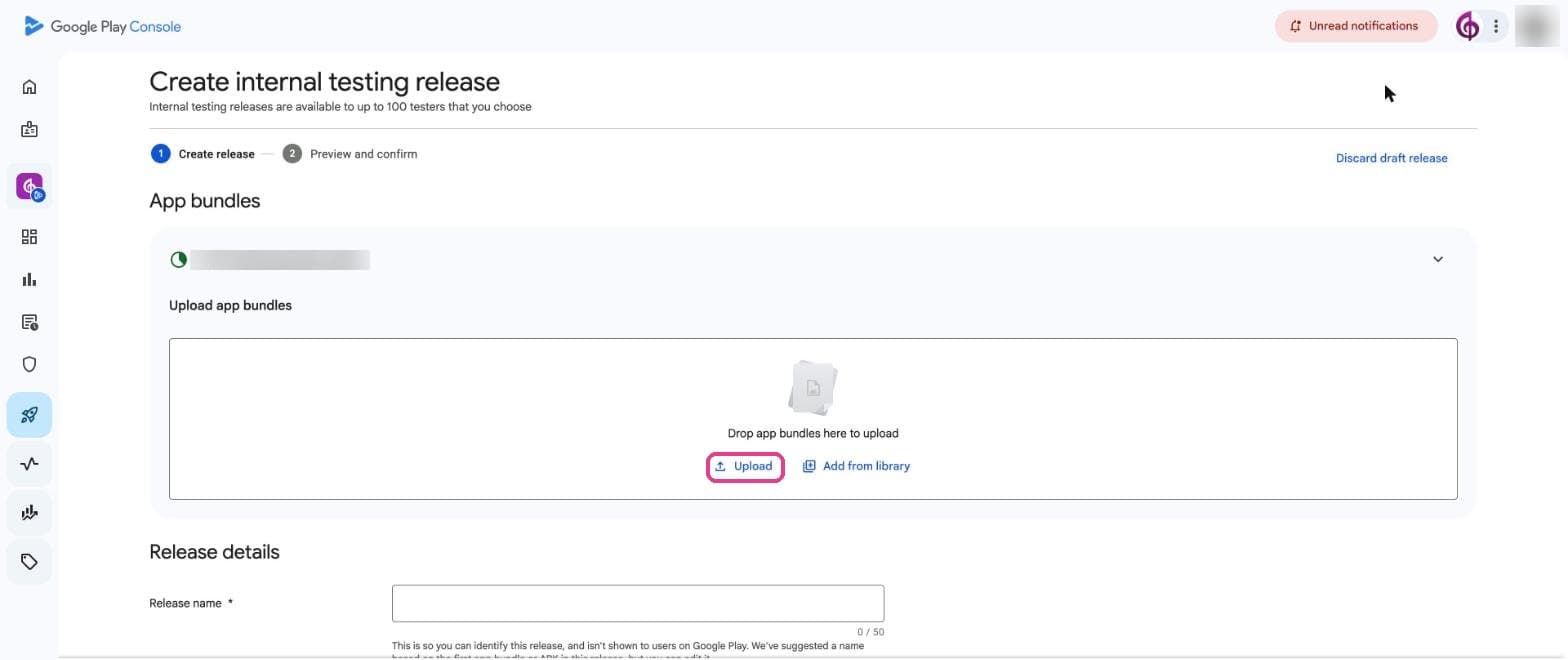
.aab) from your checklist. - 2In your new app, open Test and release → Testing → Internal testing and press Create new release.
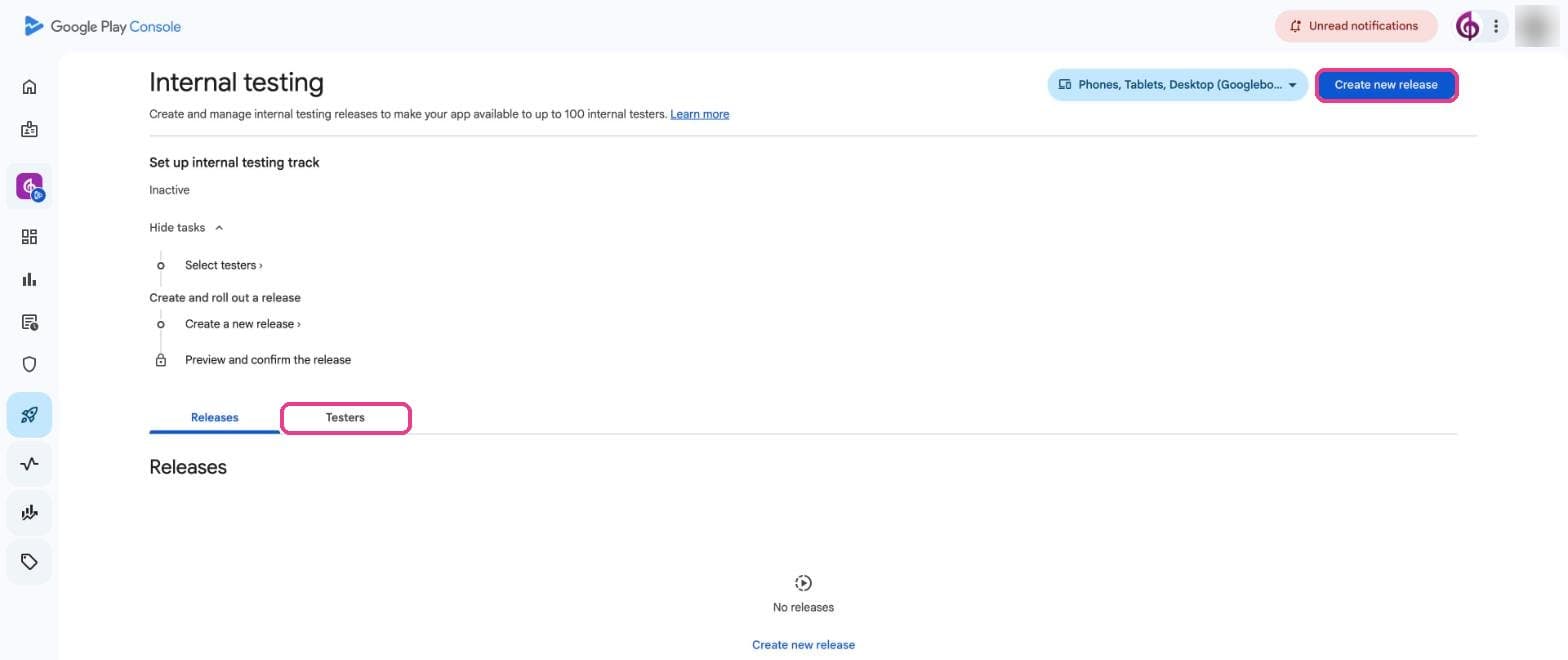
- 1If Google asks about app signing, keep its choice. Press Upload and choose the file.
- 2Press Next, then Save and publish.
3. Add yourself as a tester
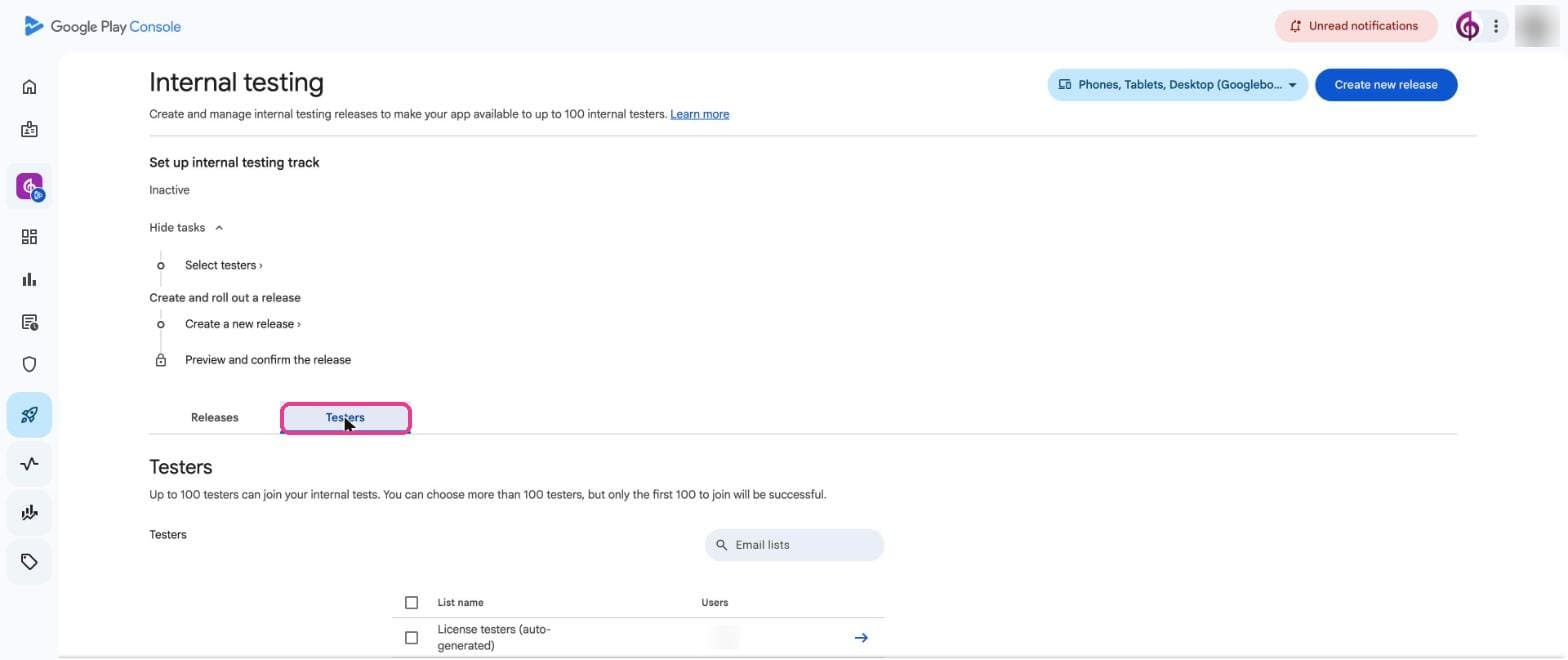
On the Testers tab, create an email list with your own address and save, so you can install your app on your phone.
4. Tell us
Back on your checklist, press I uploaded it, check. Once we can reach your app, this step is done.
Keep reading
Ready to put this into practice?
Start free and be on air in under five minutes — no software to install.Pick a plan and be on air in under five minutes — no software to install.
Start streaming freeStart streaming